Get Start

APulse Heart Tracker

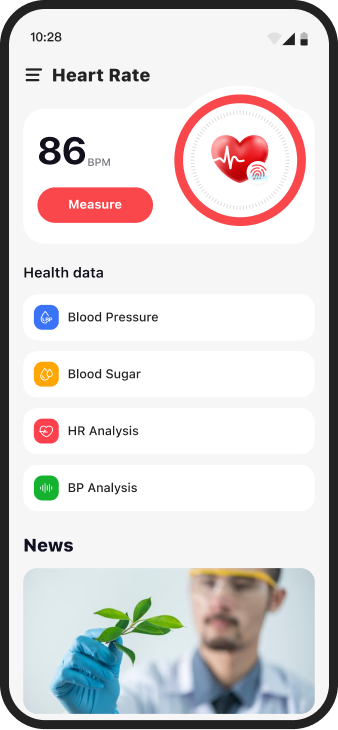
APulse Heart Tracker is a practical tool for heart rate and metabolic health monitoring. With four core functions on the homepage, it enables one-click heart rate measurement (real-time rhythm tracking), convenient blood pressure and glucose recording (for personal health files), and professional glucose trend analysis. Monitor and record multi-dimensional health data easily on the homepage—reliable support for health management.

Get Start
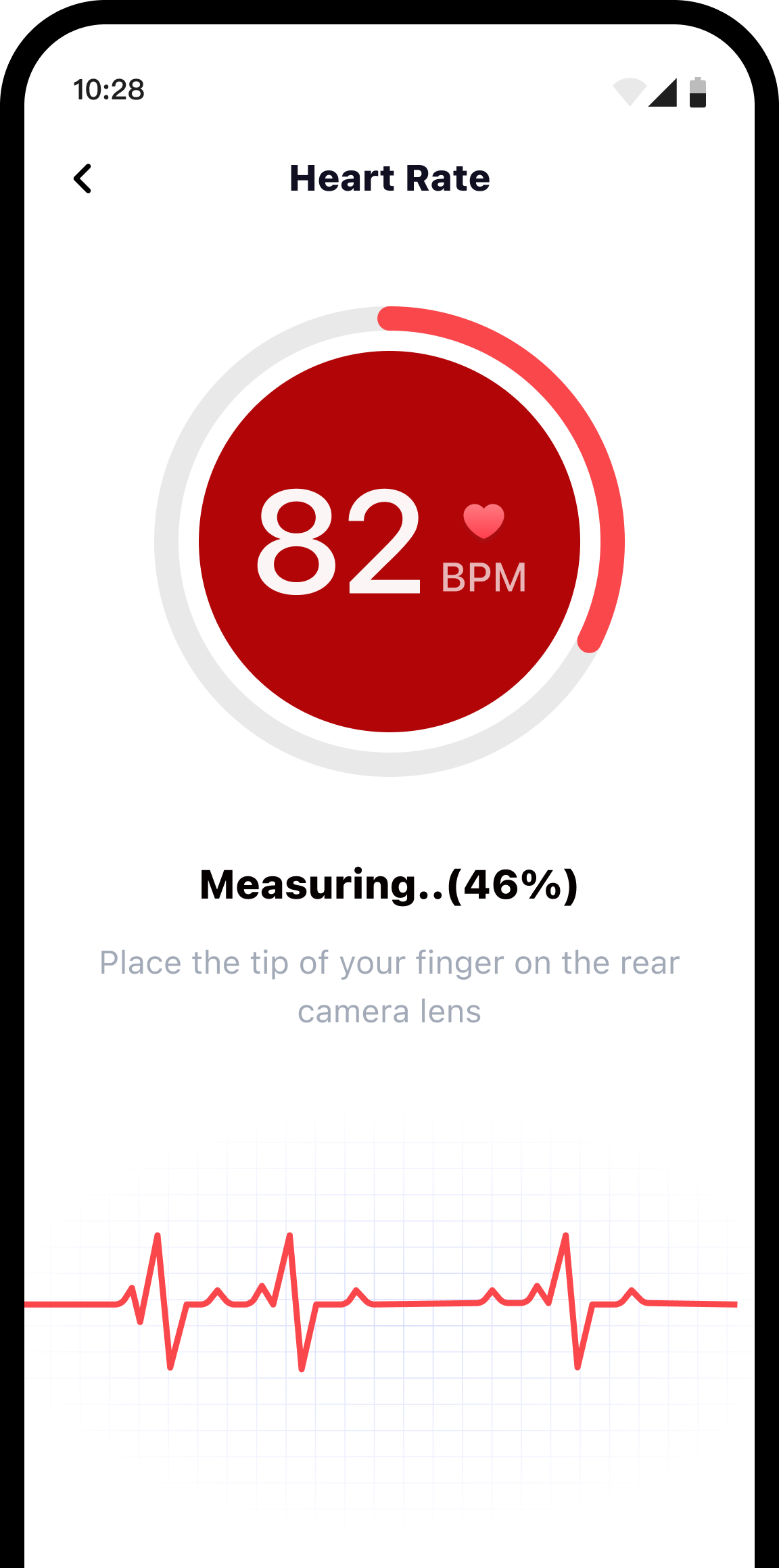
APulse Heart Tracker App
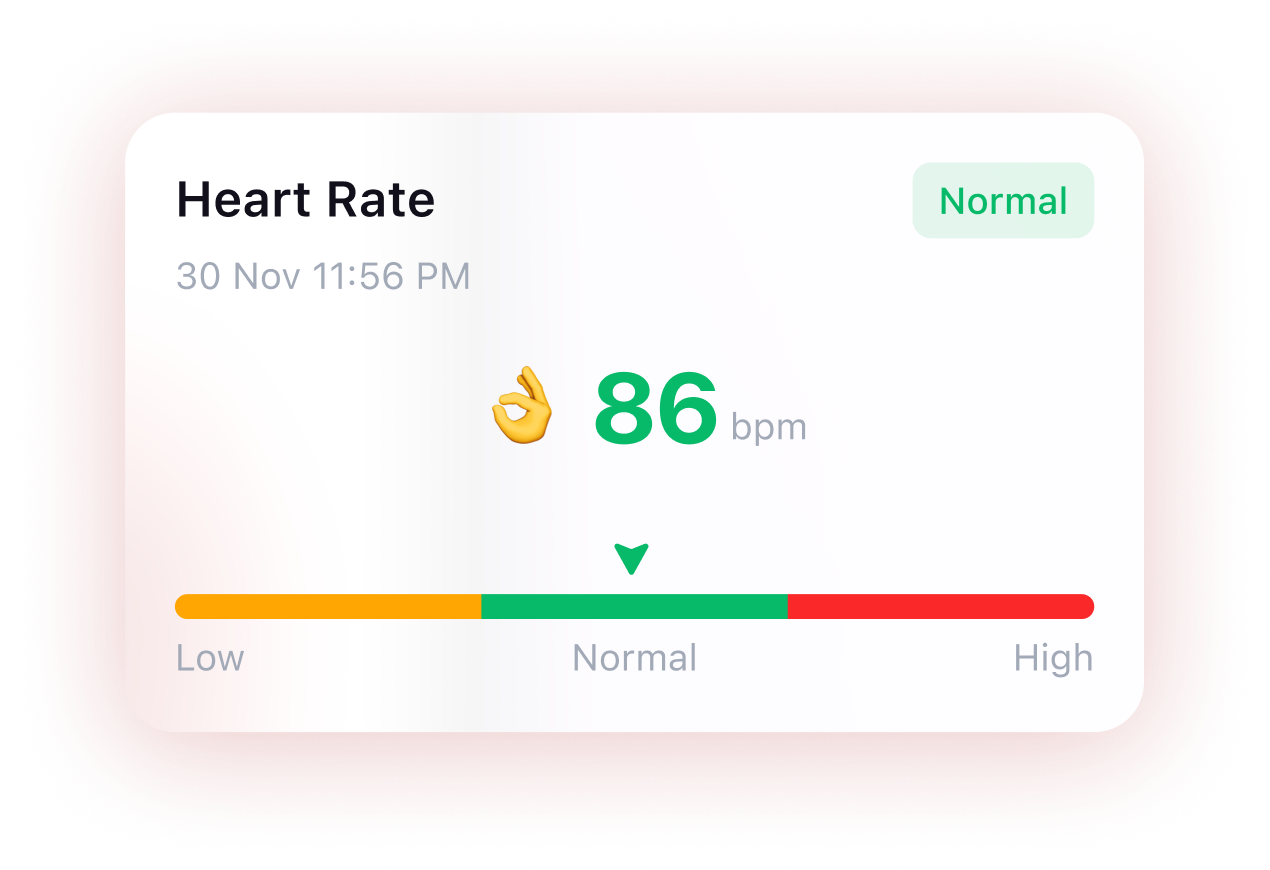
Heart Rate 86 BPM
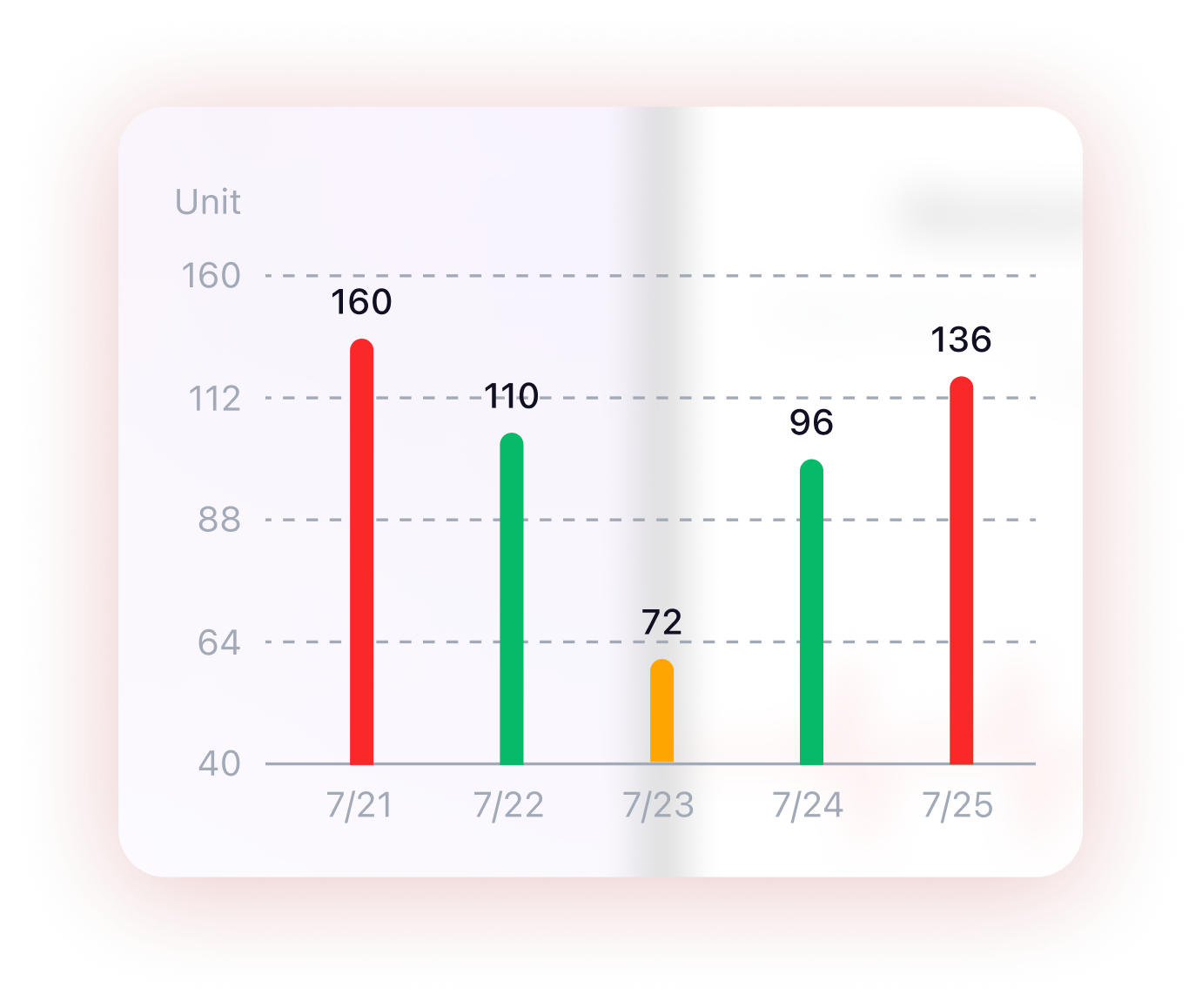
Weekly Trend Chart

About us

Heart Rate App Screen
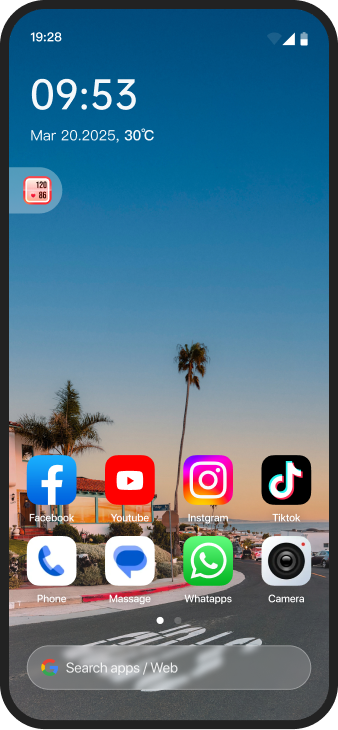
Launcher Home Screen
Arrow pointing to app
Hand Cursor
Heart Icon

One-Click Start of Health Management

It enables users to access core functions most quickly on the home screen, simplifies the operation path of health management, and allows users to quickly enter the health management function area on the negative screen through this floating love logo, facilitating them to start heart rate monitoring, blood pressure and blood sugar checking and other health services with one click.

1. What is an Android™ Launcher?
An Android™ launcher customizes and organizes your phone's home screen. It helps you manage your apps, widgets, and shortcuts efficiently, giving your device a clean and refreshed look. Android is a trademark of Google LLC.
2. How do I find and open my apps?
All your apps are stored in the app drawer — simply swipe up from the home screen to access them. If you want quick access, press and hold any app icon, then drag it to the home screen.
3. How can I remove app shortcuts from my home screen?
To remove an app shortcut (for example, the Browser), press and hold the icon, then drag it to the "Remove" area at the top of the screen.
Note: This action only removes the shortcut from the home screen, not the actual app.
4. How do I uninstall an app?
To uninstall an application, follow these steps:
  • a. Open the Google Play™ Store.
  • b. Tap your profile icon in the upper-right corner.
  • c. Choose Manage apps & device.
  • d. Open the Manage tab to view all installed apps.
  • e. Find the app you want to remove.
  • f. Tap the app, then select the trash bin icon to uninstall it.
Privacy Policy